





There’s nothing more frustrating than capturing a great moment only to realize the video looks blurry, pixelated, or full of grain. Whether it’s an old family clip, a low light recording, or a compressed social media download, poor video quality can ruin the experience.
If you’ve been searching for how to fix pixelated video, the good news is that AI technology has made it easier than ever. With the right AI video enhancer, you can restore clarity, sharpen details, and reduce noise in just a few clicks.
In this guide, you’ll learn why videos become pixelated and how to fix them using AI tools like YouCam Online Editor’s AI Video Enhancer.

Why Videos Become Pixelated or Grainy
Before learning how to unpixelate a video, it helps to understand what causes the issue.
1. Low Resolution Recording
If a video was recorded in 480p or 720p, stretching it to full screen will make it look blocky and pixelated.
2. Heavy Compression
Videos sent through messaging apps or downloaded from social platforms are often compressed. This removes detail and creates visible artifacts.
3. Low Light Conditions
Grainy video is usually caused by poor lighting. Cameras increase ISO in dark environments, which introduces digital noise.
4. Digital Zoom
Zooming in digitally reduces clarity and makes footage look soft or distorted.
The solution is not simply increasing brightness or sharpness. That can actually make noise worse. Instead, you need AI powered video enhancement that intelligently restores detail.
How to Fix Pixelated Video Online in 3 Steps
Modern AI video enhancer tools analyze each frame of your video and reconstruct missing details. Instead of stretching pixels, AI predicts and rebuilds textures, edges, and facial features for a clearer result.
Here’s how to fix pixelated video step by step using YouCam Online Editor:
Step 1: Upload Your Video
Go to YouCam Online Editor and upload your pixelated or grainy video directly in your browser.
Step 2: Use the Video Enhancer Tool
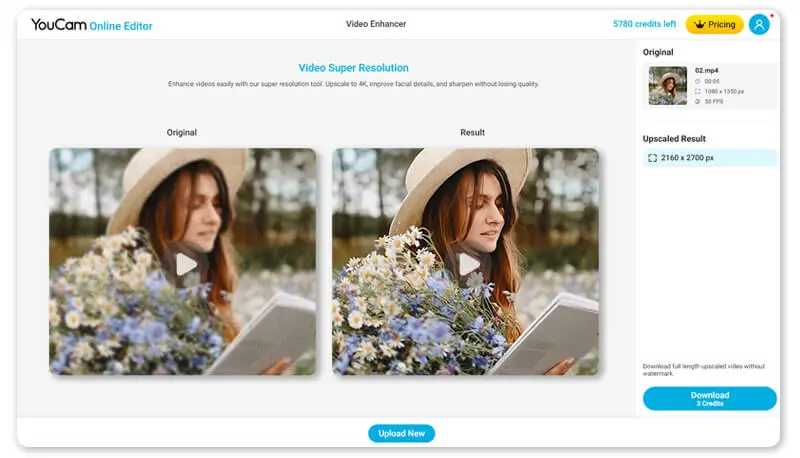
The AI video enhancer automatically analyzes your footage and applies intelligent upscaling, sharpening, and noise reduction.
Step 3: Enhance and Download
Preview the improved version, then download your enhanced video in higher quality.
What Does AI Video Enhancement Actually Do?
If you’re wondering whether you can fix a pixelated video, here’s what AI enhancement typically improves:
- Increases perceived resolution
- Sharpens soft edges
- Reduces grain and digital noise
- Improves facial clarity
- Restores lost details from compression
While AI cannot recreate data that never existed, it can dramatically improve how clear and smooth your video appears.
When Should You Use a Video Enhancer?
You should consider using an AI video enhancer if:
- You downloaded a video that looks blurry
- You recorded in low light and see heavy grain
- You are upscaling old footage
- You need higher quality for social media or presentations
Enhancing before posting can significantly improve engagement since clearer videos look more professional and polished.
Why Use YouCam Online Editor’s Video Enhancer?
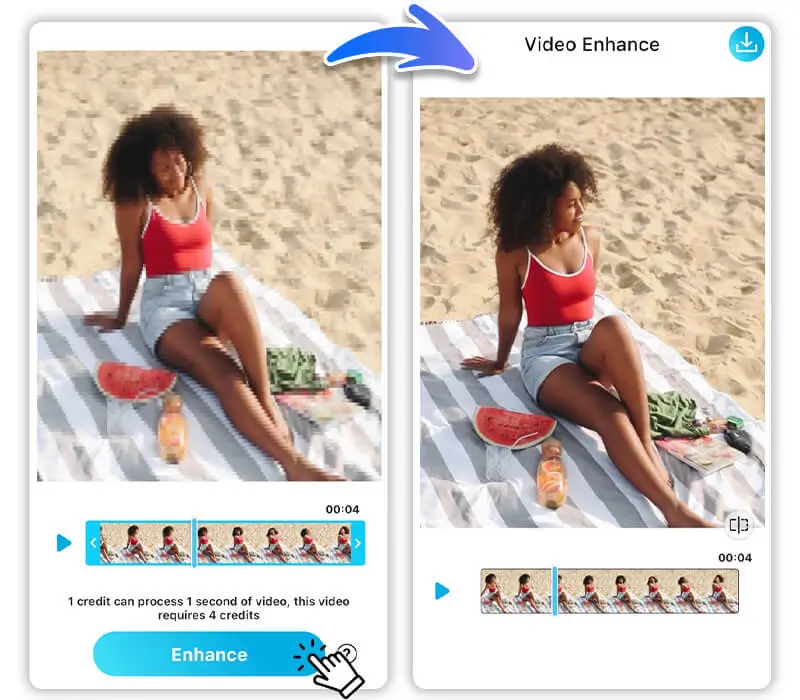 There are many tools claiming to fix blurry video, but YouCam Online Editor stands out because it is:
- Browser based and easy to use
- Powered by advanced AI technology
- Designed for quick, automatic enhancement
- Suitable for both casual users and content creators
You do not need editing experience to unpixelate video clips. Just upload, enhance, and download.
Tips to Prevent Pixelated Videos in the Future
While AI can fix pixelated video, prevention is even better.
- Record in the highest resolution available
- Avoid excessive digital zoom
- Shoot in good lighting
- Use stable internet when uploading to reduce compression
If quality still drops, AI enhancement can restore clarity before sharing.
Fix Pixelated Videos with YouCam Online Editor
If you have been searching for how to fix pixelated video or how to unpixelate video footage, AI technology has changed the game. You no longer need complex software or expensive tools.
With YouCam Online Editor’s AI Video Enhancer, you can reduce grain, sharpen details, and restore clarity in minutes. Whether it’s an old memory or new content for social media, better video quality is just a few clicks away.


