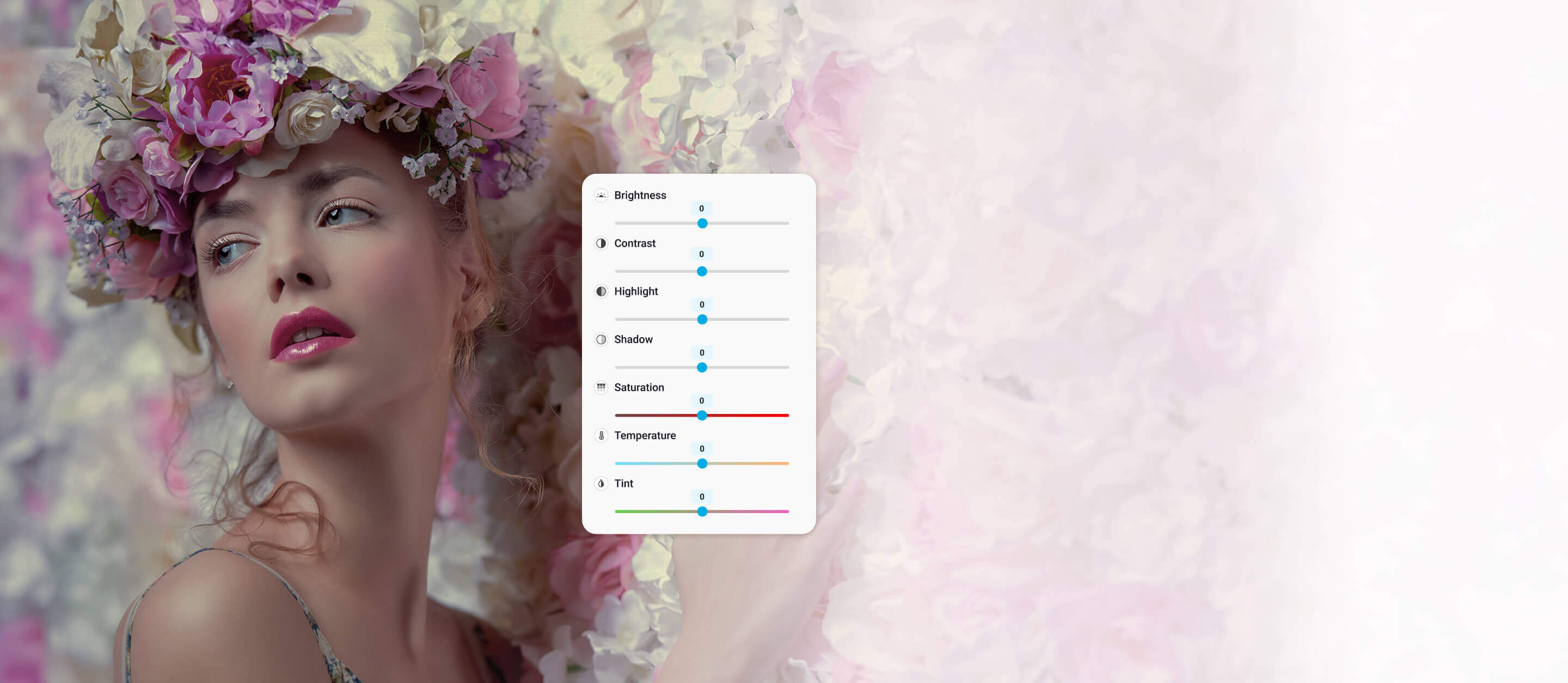


 Download without watermarkAccess to AI Photo Editing ToolsUnused credits roll over





Adjust Colors and Brighten Your Photos
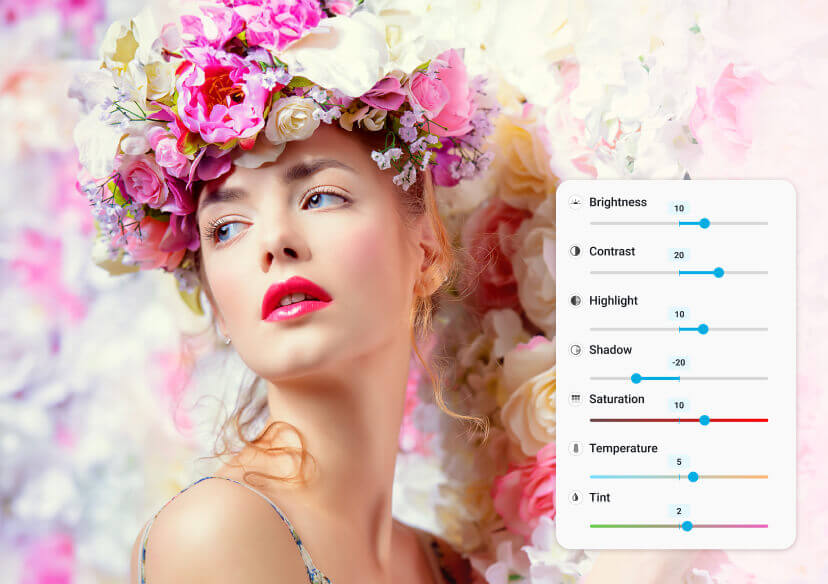
Enhance your photos with our FREE Online Photo Editor. Adjust color, brightness, contrast, and saturation with just a few clicks.


Easily Color Correction Your Photos by Adjusting Colors
Easily adjust tint, temperature, and saturation to achieve perfect color correction and transform your photos. Our free online tool allows you to fine-tune colors and create stunning, vibrant photos. Bring out the best in your photos with just a few clicks!
Customize Brightness Levels with Our Online Image Brightener
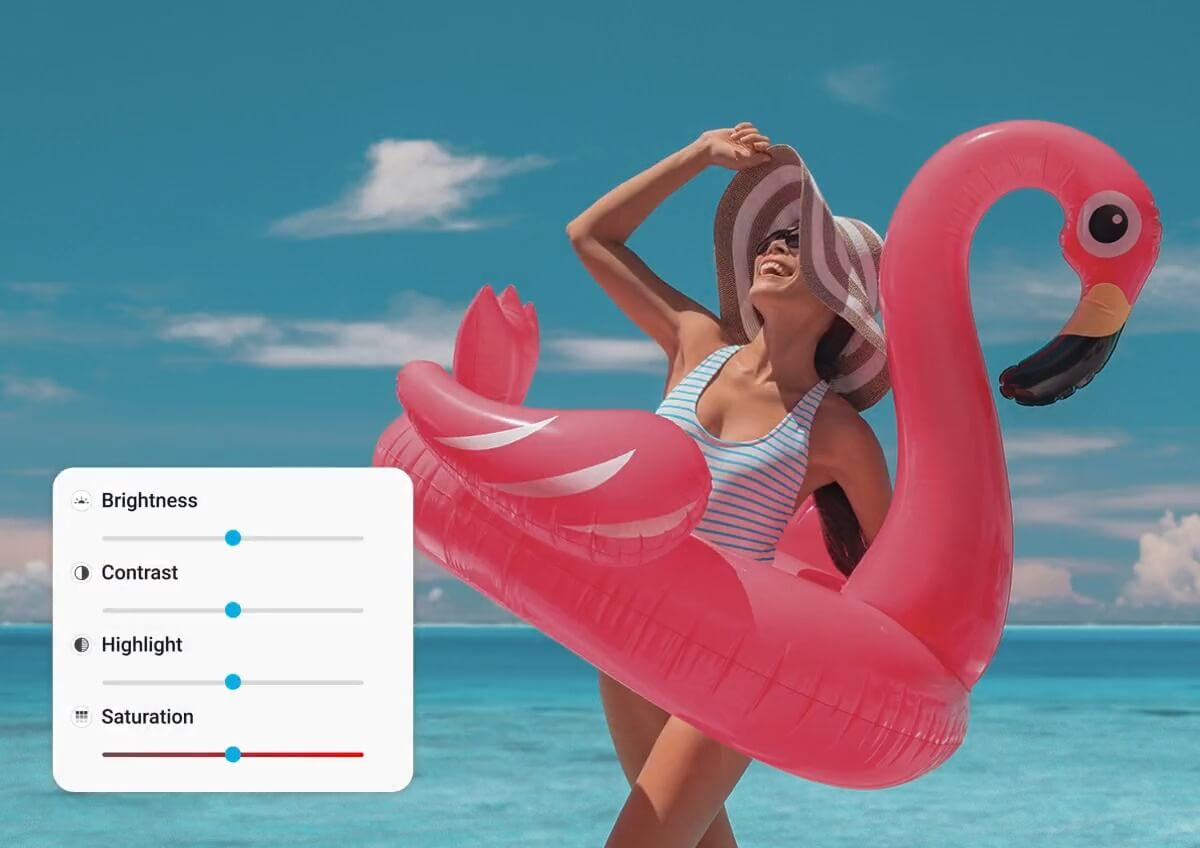
Customize brightness levels, contrast, shadows, and highlights to reveal hidden details and vibrant colors.
Our free online tool makes it easy to enhance your images and bring out their true potential. Achieve stunning, professional-quality results with just a few clicks!
Enhance Color Vibrancy With Photo Color Adjusting Tools
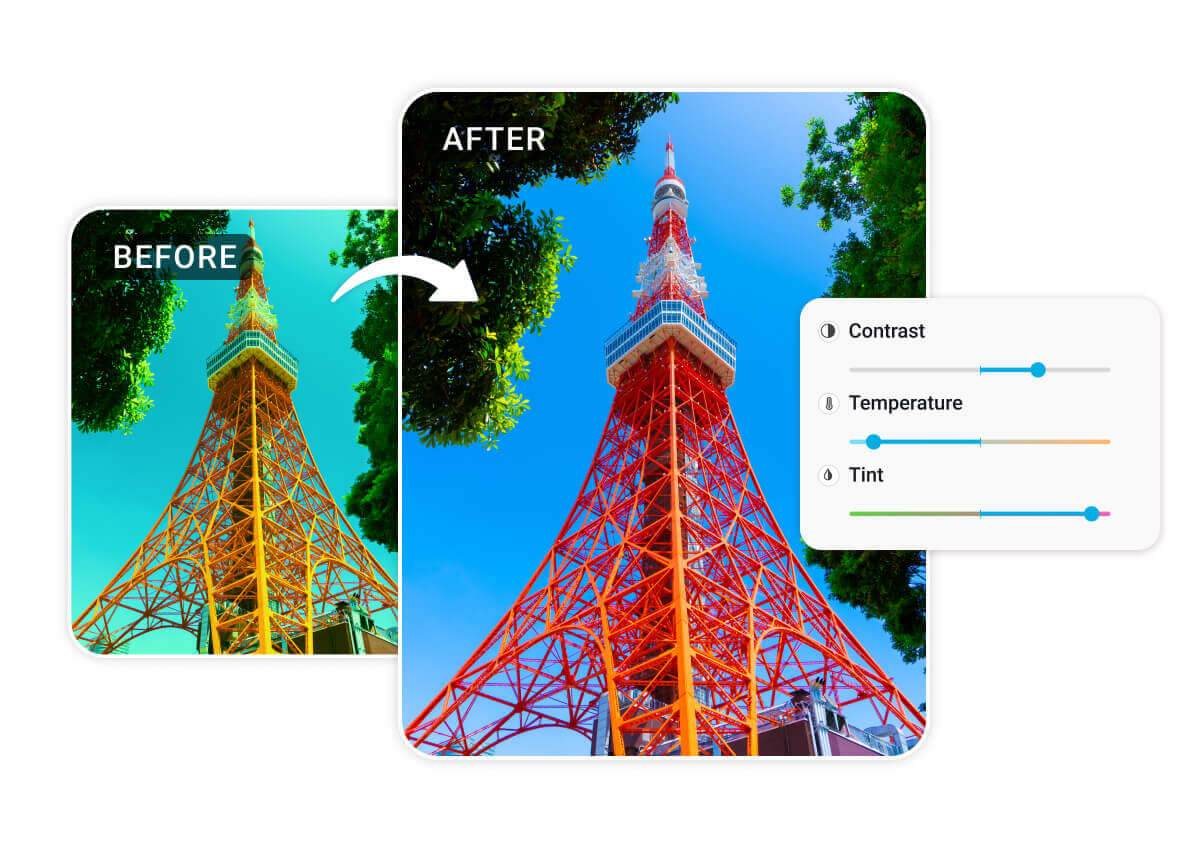
Change Color of Image: Adjust Tint for Creative Effects
Want to give your photo a unique look?
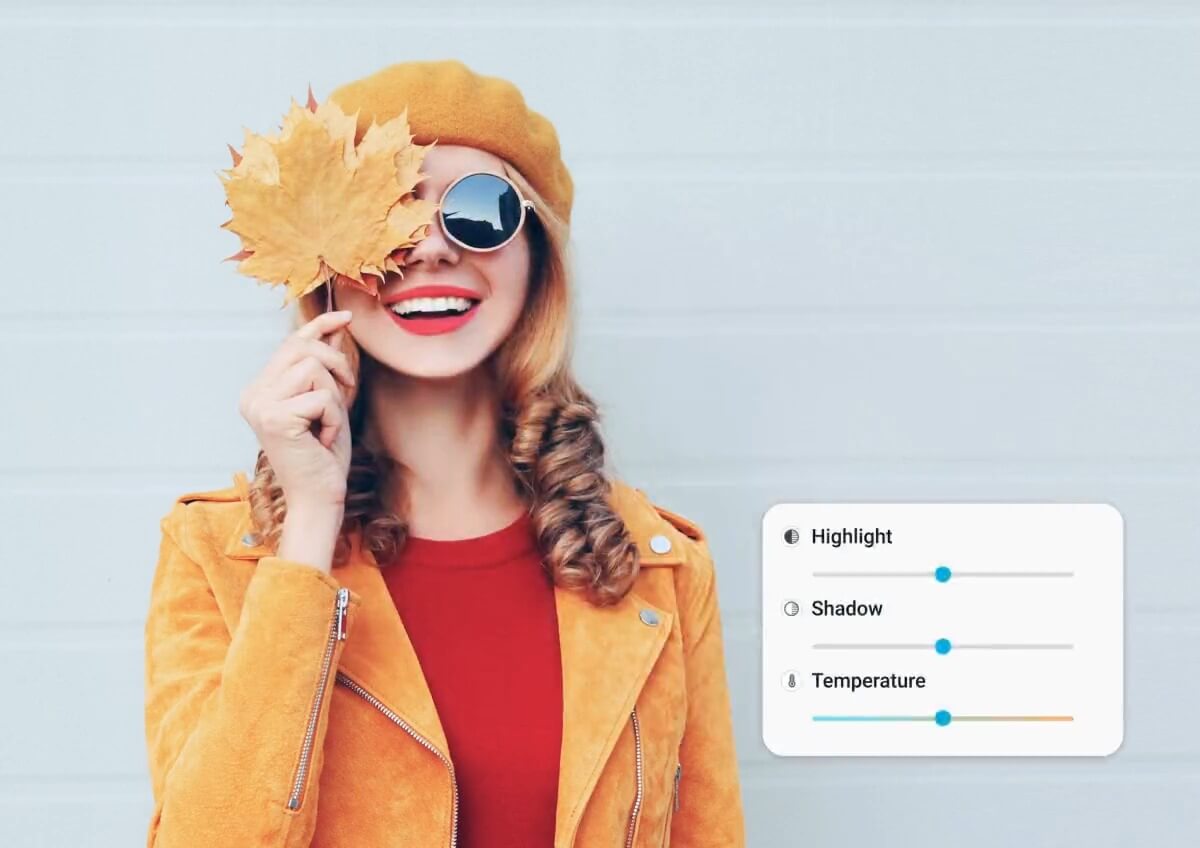
Adjusting the tint can add a creative color cast, like a cool blue or warm red, to your image. This is great for artistic projects or creating a specific mood in your photos.
Correct Color Balance: Adjust Temperature for Natural Tones
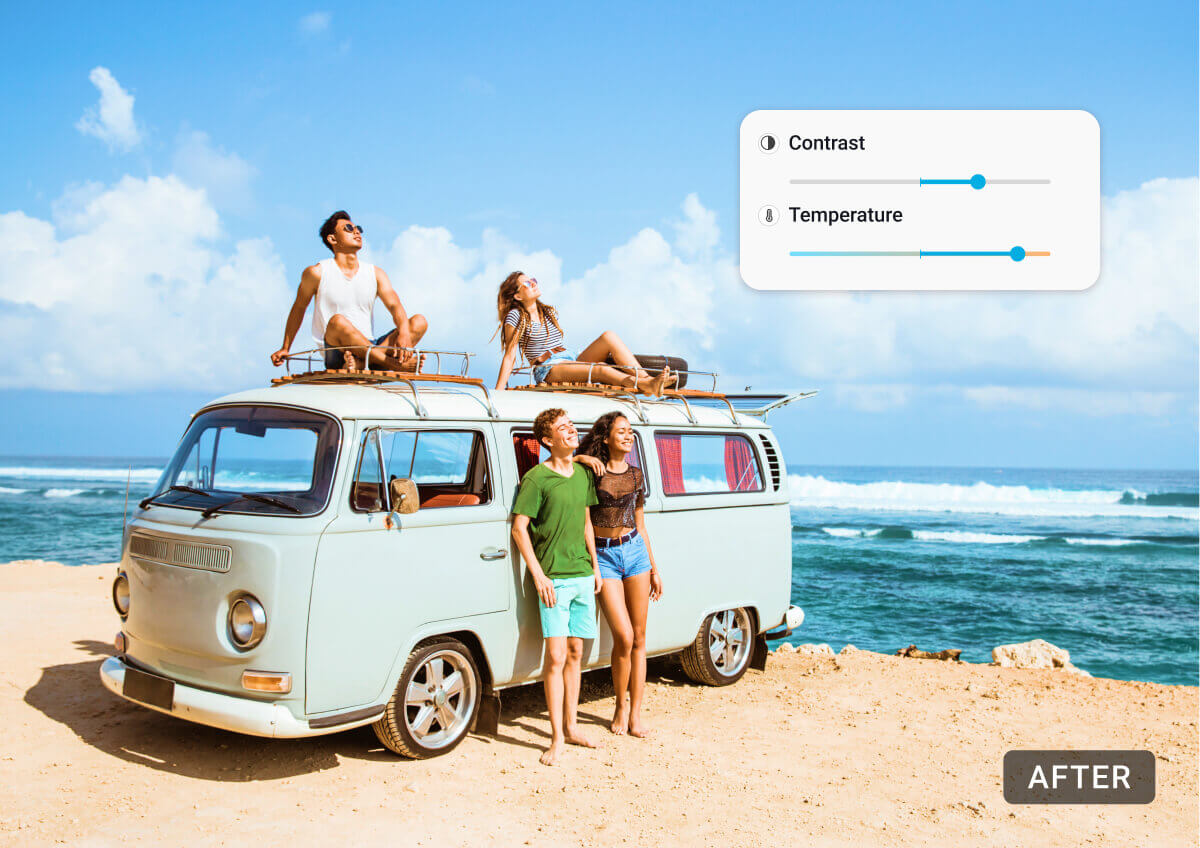
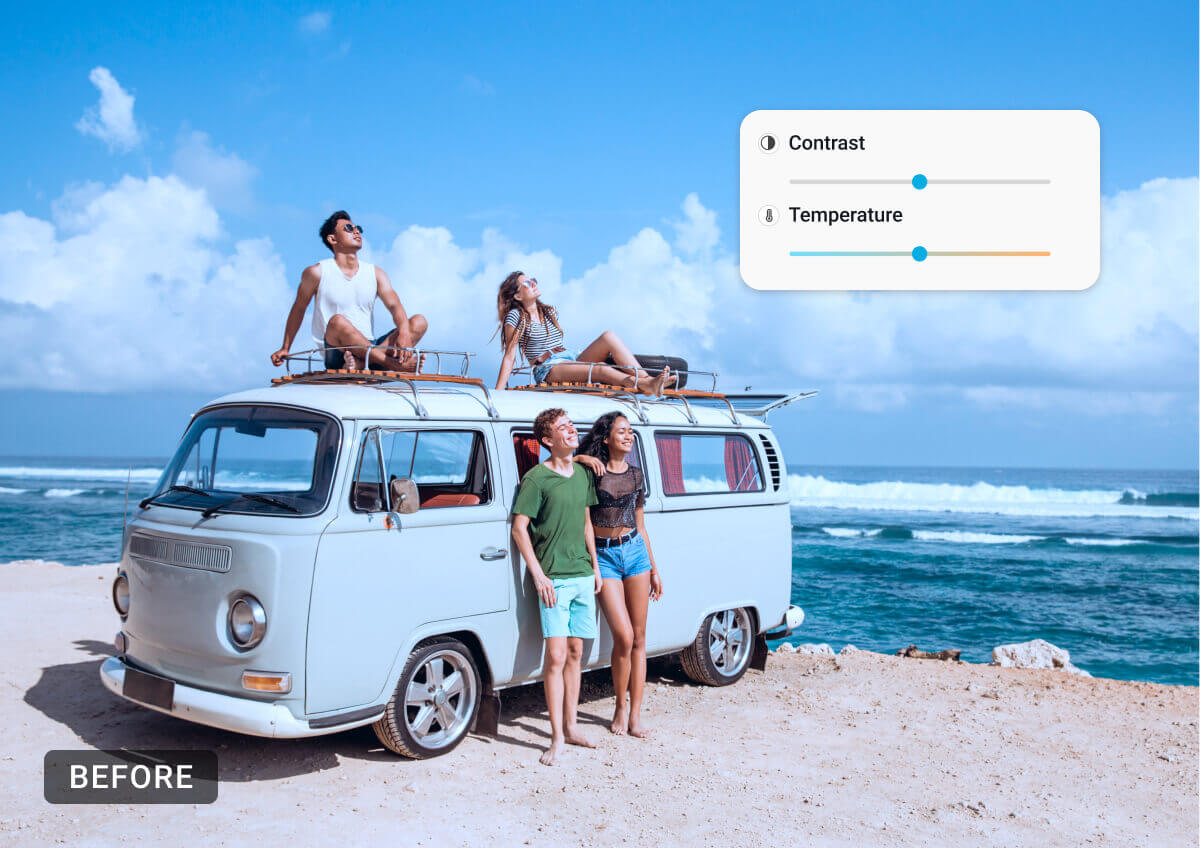
Have a photo that looks too warm or too cool?
Adjusting the temperature can correct the color balance, making the image look more natural. This is perfect for ensuring skin tones and landscapes appear true to life.

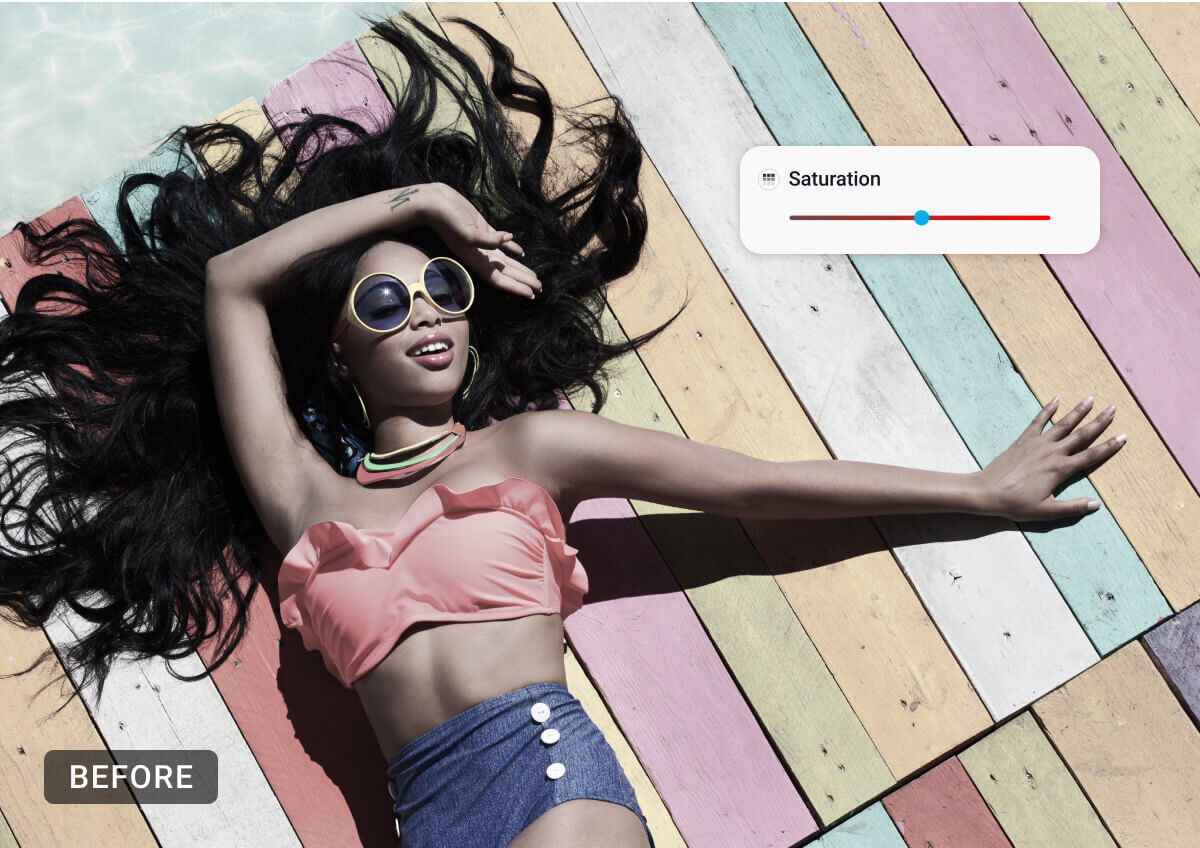
Enhance Vibrancy: Adjust Saturation for Richer Colors
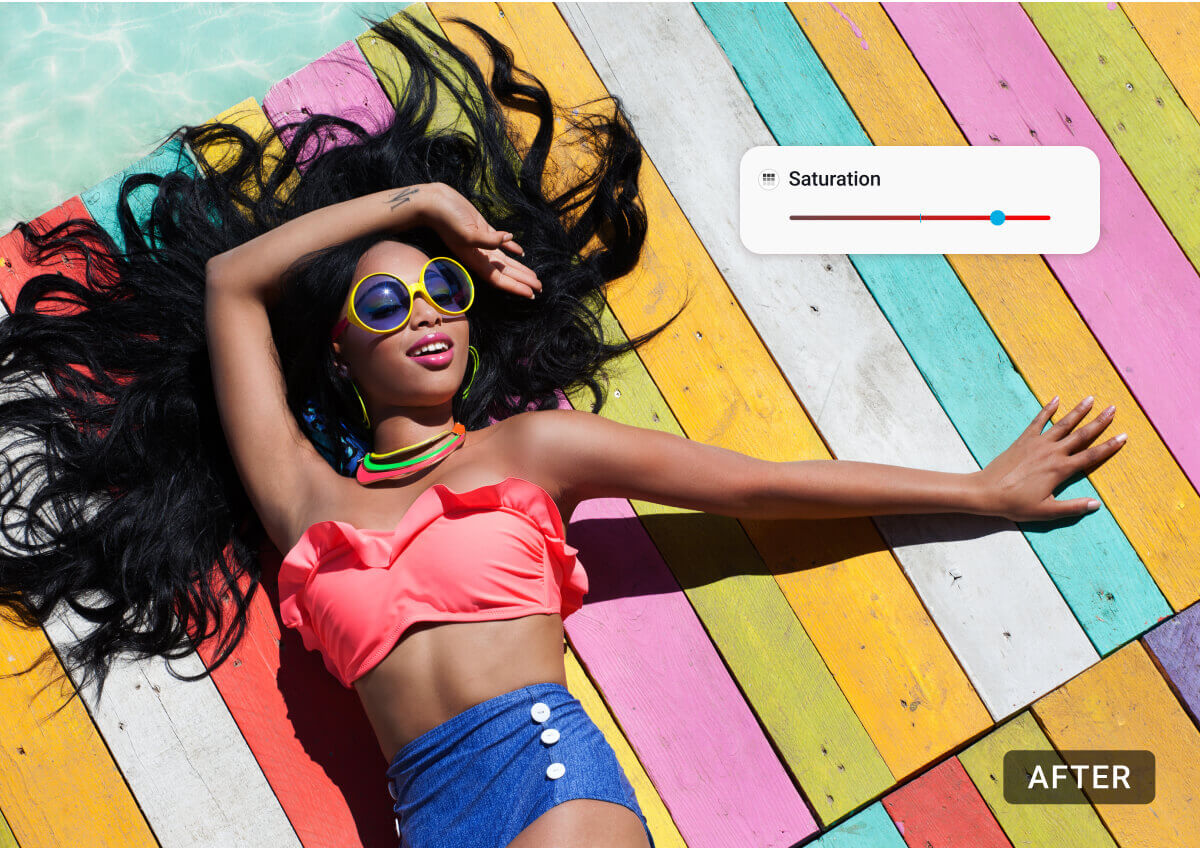
Is your photo looking dull and lifeless?
Increasing the saturation can make the colors more vibrant and eye-catching. This is ideal for making your images stand out on social media or in a photo album.
Enhance Your Photo Lighting With Image Brightening Tools
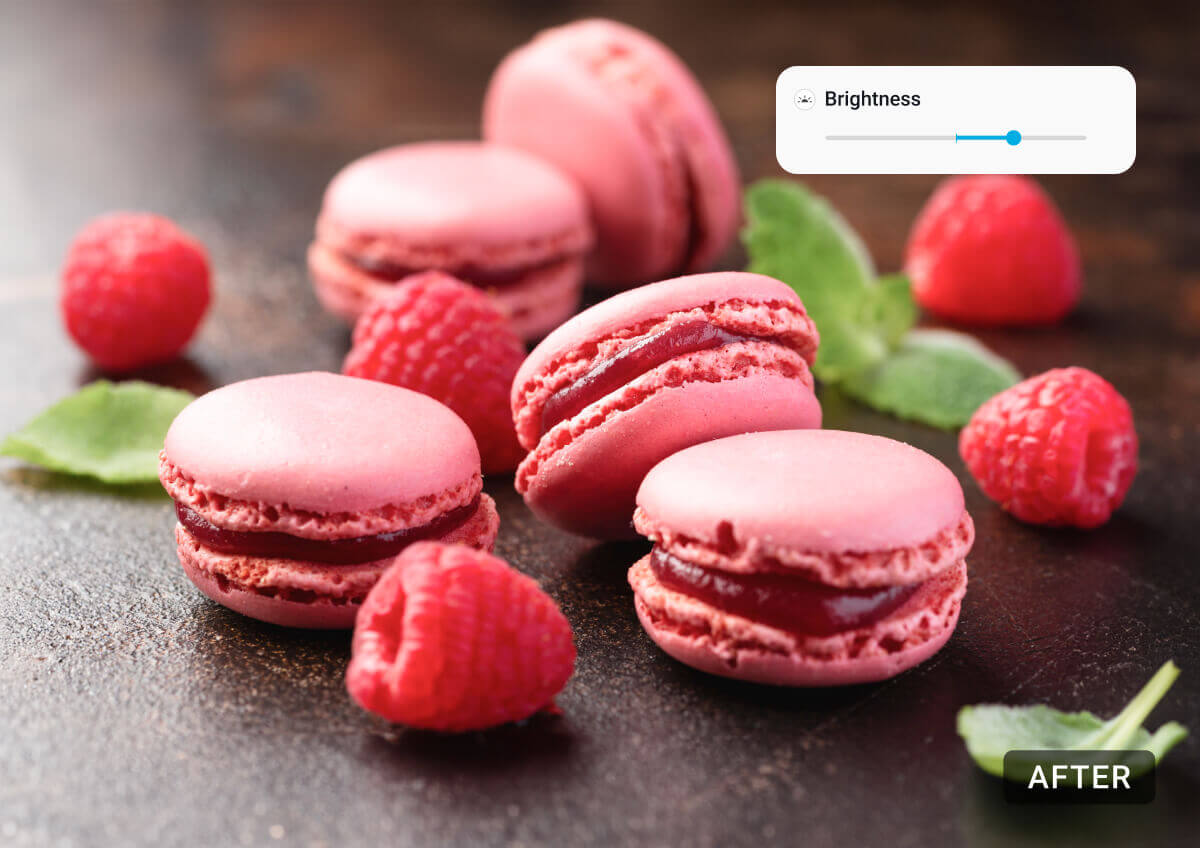
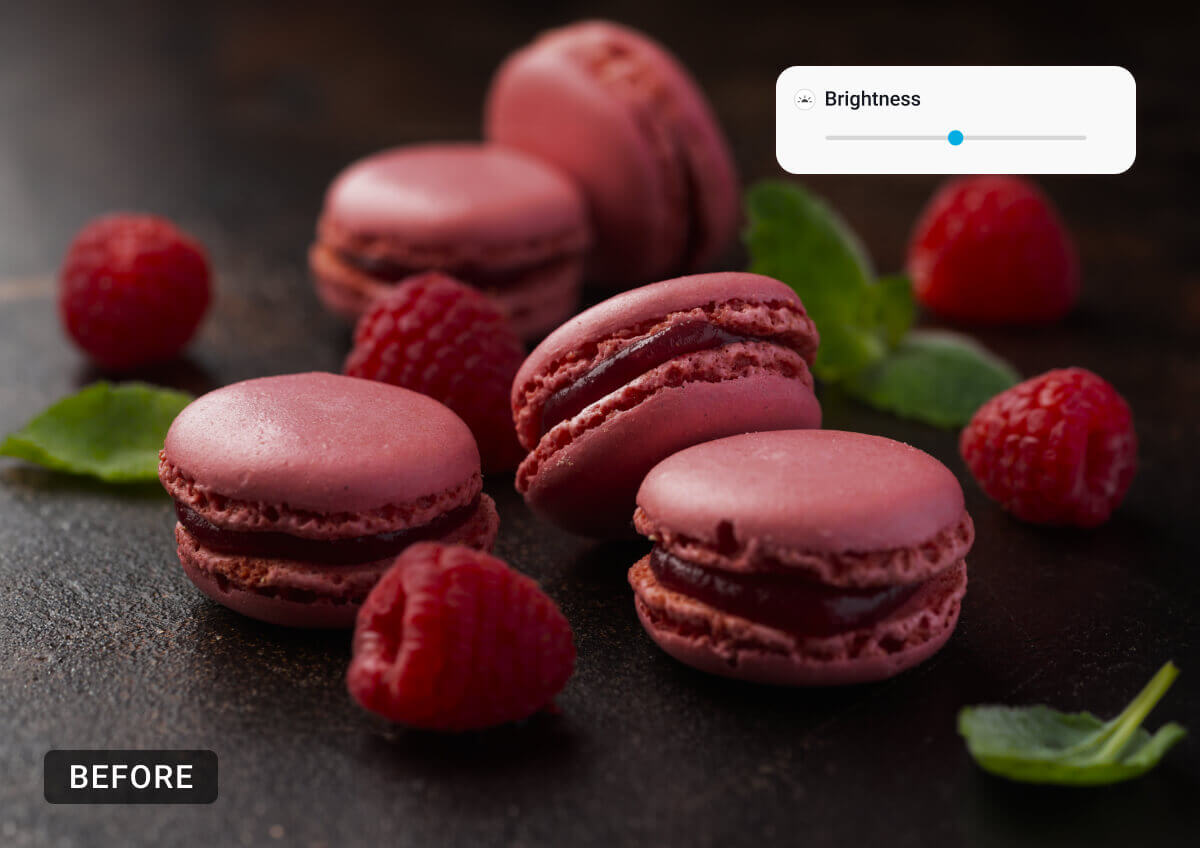
Brighten Image: Increase Brightness in Dark Photos
Imagine you took a photo at a dimly lit restaurant, and it's too dark to see the details. Using an online brightening tool, you can increase the brightness to make the photo clearer and more vibrant. This adjustment ensures the ambiance and people are visible, perfect for sharing on social media.
Lighten Image: Enhance Highlights for Better Detail
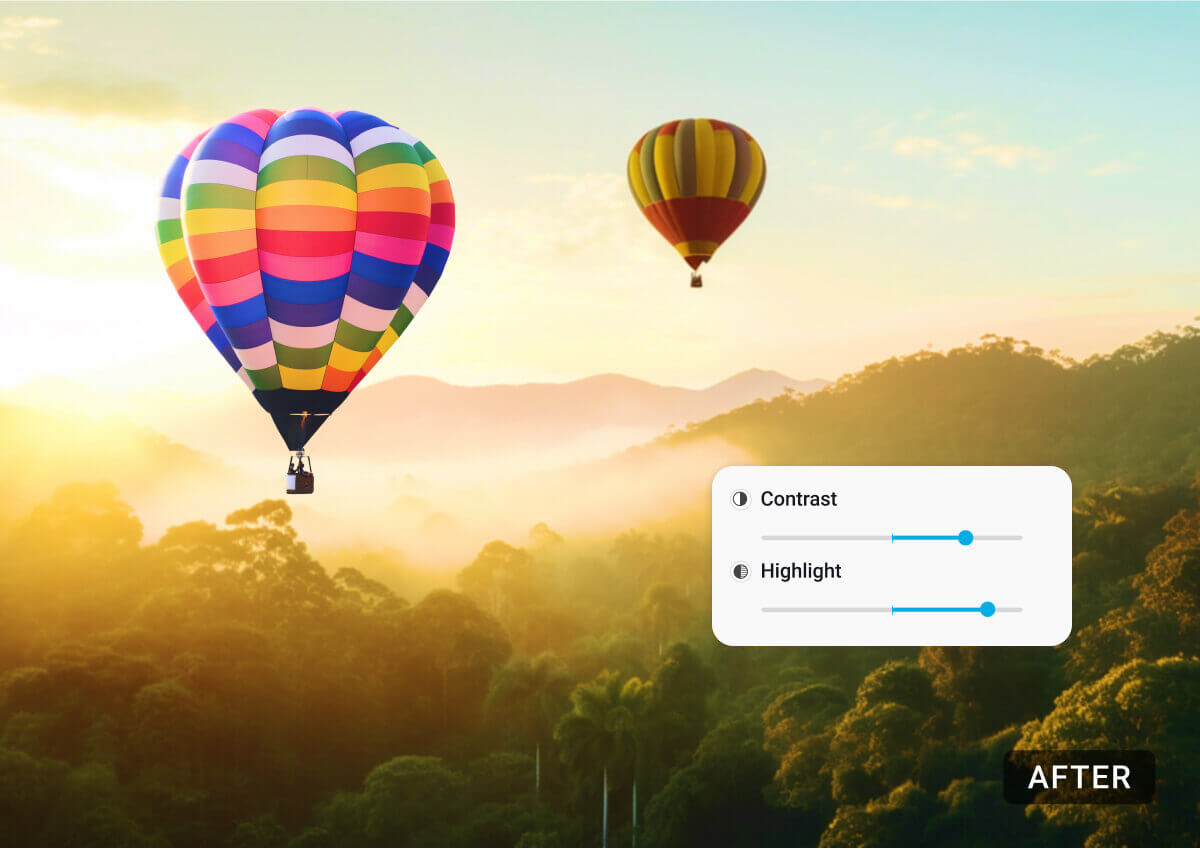
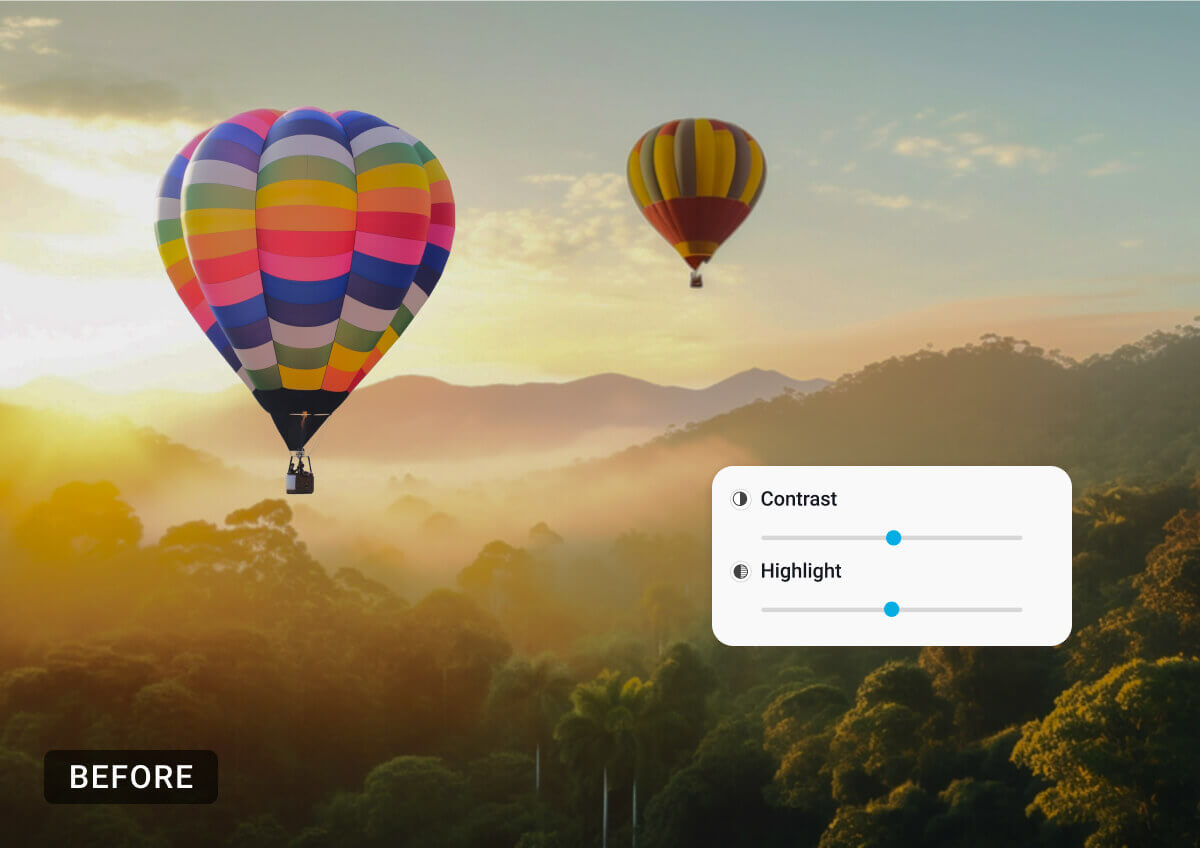
Suppose you have a photo of a beautiful sunrise, but the bright light has washed out some details.
Enhancing the highlights can bring out the subtle colors and textures in the sky and landscape. This makes the photo more striking and detailed, ideal for printing or adding to your travel blog.
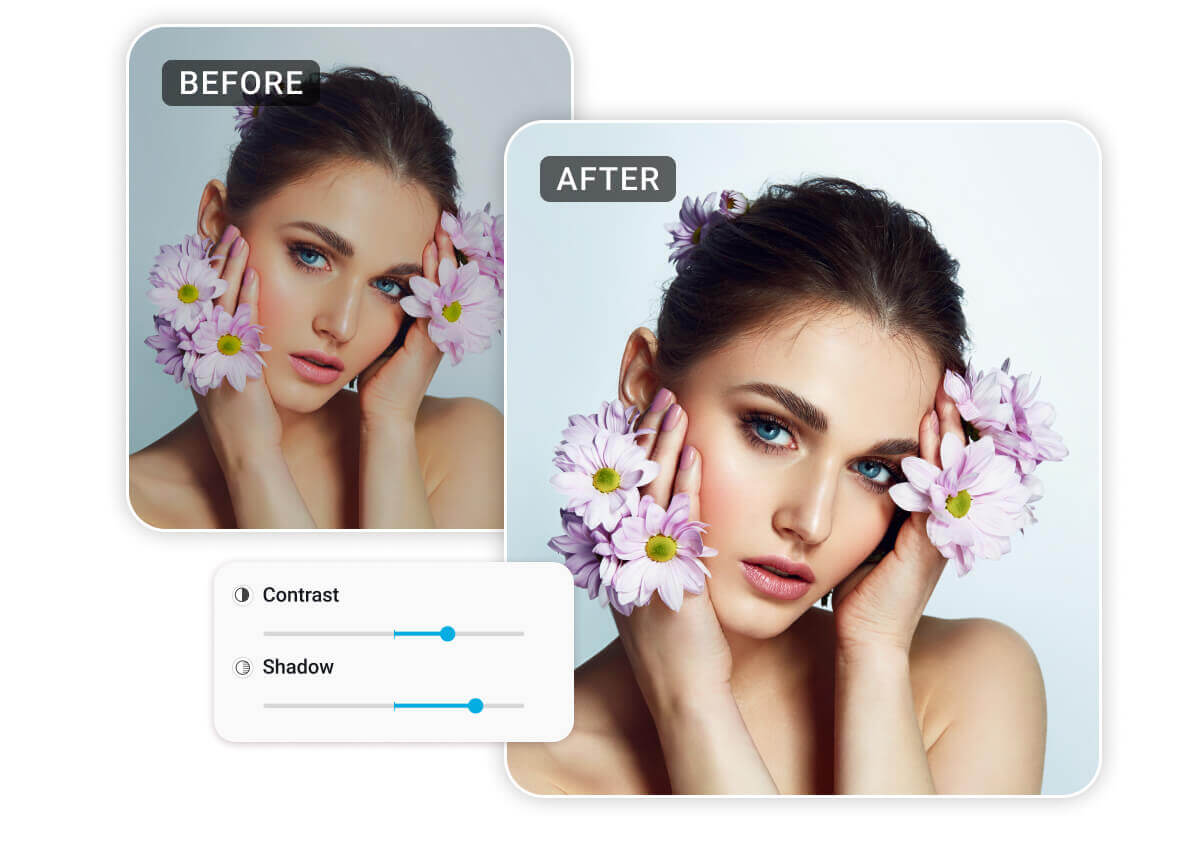
Adjust Contrast and Shadows: Add Depth and Dimension
Consider a portrait photo taken in natural light, but the shadows are too harsh. Adjusting the shadows and contrast can soften dark areas and make colors pop, giving the photo a professional touch. This is perfect for updating your profile picture or creating a polished look for your portfolio.
How to Enhance Photo Color & Light Online Using YouCam Online Photo Editor

Upload Your Photo
Go to the YouCam Online Photo Editor and click on the upload button to select the photo you want to edit.

Adjust Brightness and Contrast
Once your photo is uploaded, use the brightness and contrast sliders to enhance the overall light and dark areas of your photo.
Modify Tint and Temperature
Navigate to the color adjustment tools and adjust the tint to add a color cast, and the temperature to make the photo warmer or cooler.

Save and Download
After making your adjustments, click on the save button to download your edited photo in high resolution.
Adjust Image Color & Brighten Image FAQs
How can I adjust the brightness of my photo?
After uploading your photo, use the brightness slider in the editing tools to increase or decrease the brightness as needed.
What does the tint adjustment do?
The tint adjustment allows you to add a color cast to your photo, such as a cool blue or warm red, to create different visual effects.
How do I correct the color temperature of my photo?
Use the temperature slider in the color adjustment tools to make your photo warmer (more yellow) or cooler (more blue) to achieve a natural color balance.
How can I make the colors in my photo more vibrant?
Adjust the saturation slider to enhance the vibrancy of the colors in your photo, making them more eye-catching.
Can I save my edited photo in high resolution?
Yes, after making your adjustments, click on the save button to download your edited photo in high resolution.


