





Key Takeaways: Fixing Overexposure
- The Problem: Overexposure occurs when too much light hits the sensor, causing "blown-out" white areas.
- The Solution: YouCam Online Editor uses an "AI Lighting" tool to auto-correct levels.
- How it Works: It selectively maps tones—darkening highlights while preserving mid-tones so the image doesn't look gray.
- Best For: Travel selfies, backlit portraits, and outdoor shots.
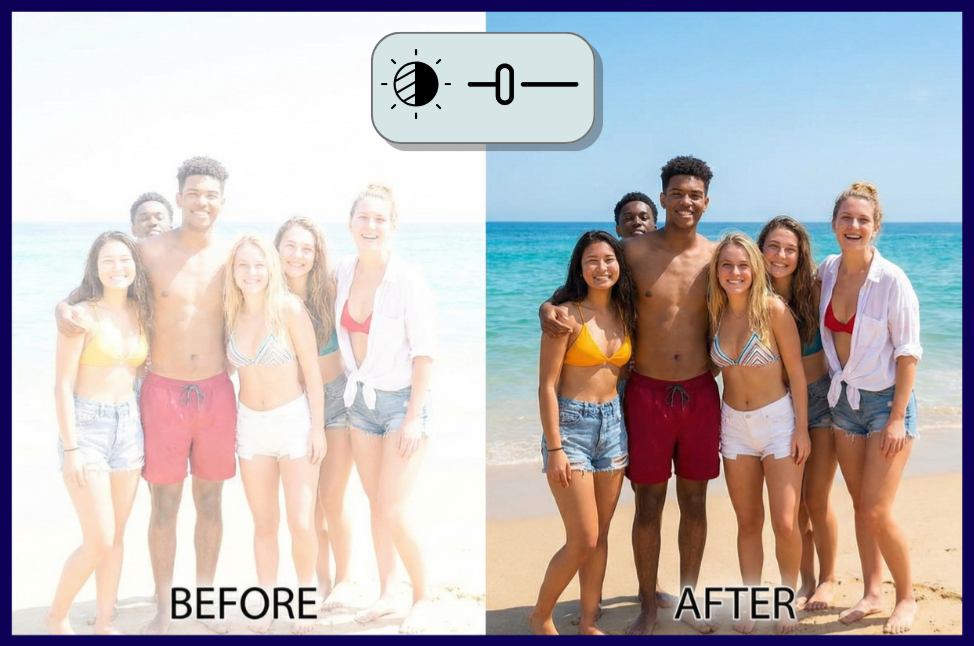
We’ve all been there: You take the perfect selfie at the beach or a stunning travel shot, only to check your camera roll and see a washed-out, blindingly white mess. This is called overexposure.
In the past, fixing this required complex software like Lightroom to recover the "highlight data." But in 2026, you can use generative AI to intelligently reconstruct these details. Here is how to fix overexposed photos instantly using the YouCam Online Editor.
Step-by-Step: Using AI to Fix Lighting
The YouCam Online Editor features a specialized AI Lighting tool. Instead of just lowering the brightness (which makes the whole photo look muddy), it acts like a smart digital gaffer, adjusting only the areas that need help.
1. Upload Your Photo
Go to the YouCam Online Editor and drop your JPEG or PNG file directly into the browser.
2. Use Auto AI Lighting
The tool is smart. It will automatically analyze the histogram to detect if the photo is too dark (underexposed) or too bright (overexposed). Simply click the "Auto AI Lighting" button.
3. Adjust the Levels
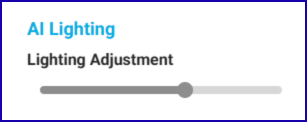
Watch as the blown-out white skies turn blue again and facial features return. You can use the slider to fine-tune the intensity. (Pro Tip: Usually 60-70% is the sweet spot for a natural look).
4. Save and Download
Once satisfied, click "Download" to save your balanced, high-quality image.
Pro Tip: Why Your Photos Get Overexposed
Understanding why this happens helps you signal expertise and take better photos next time. In photography, exposure is controlled by the "Exposure Triangle." An image becomes overexposed when the sensor captures more light than it can process.
Why AI is better than a "Brightness" slider:
- Standard Sliders: When you simply lower the brightness, you turn white pixels into gray pixels.
- AI Tone Mapping: The YouCam AI Lighting tool understands that a white sky should be blue and a washed-out face should have skin texture, effectively repainting the lost data rather than just darkening it.
5 Unique Ways to Use AI Lighting Correction
While fixing selfies is the most common use, the AI Lighting tool is surprisingly powerful for specific photography challenges where traditional cameras struggle with "Dynamic Range." Here are 5 scenarios where this tool saves the shot:
1. Moon Photography (The "White Blob" Fix)
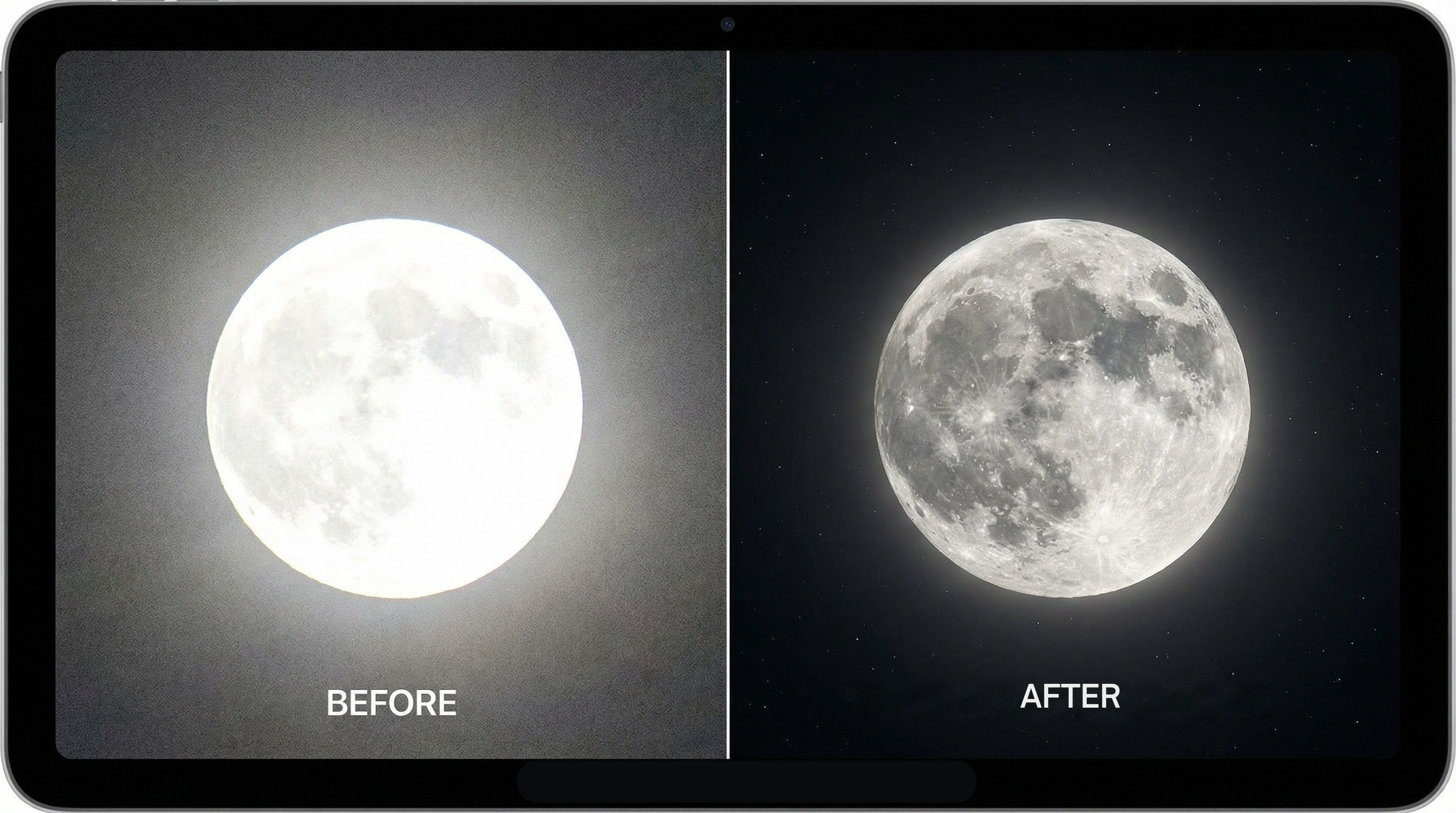
The Problem: When photographing the moon with a phone, the camera often overexposes the bright moon against the dark sky, turning it into a featureless white glowing orb.
The AI Fix: Upload your moon shot and use the tool to drastically lower the highlight exposure. The AI can often recover the lost details, revealing the craters and textures of the lunar surface that were hidden by the glow.
2. Snowy Mountains & Ski Trips
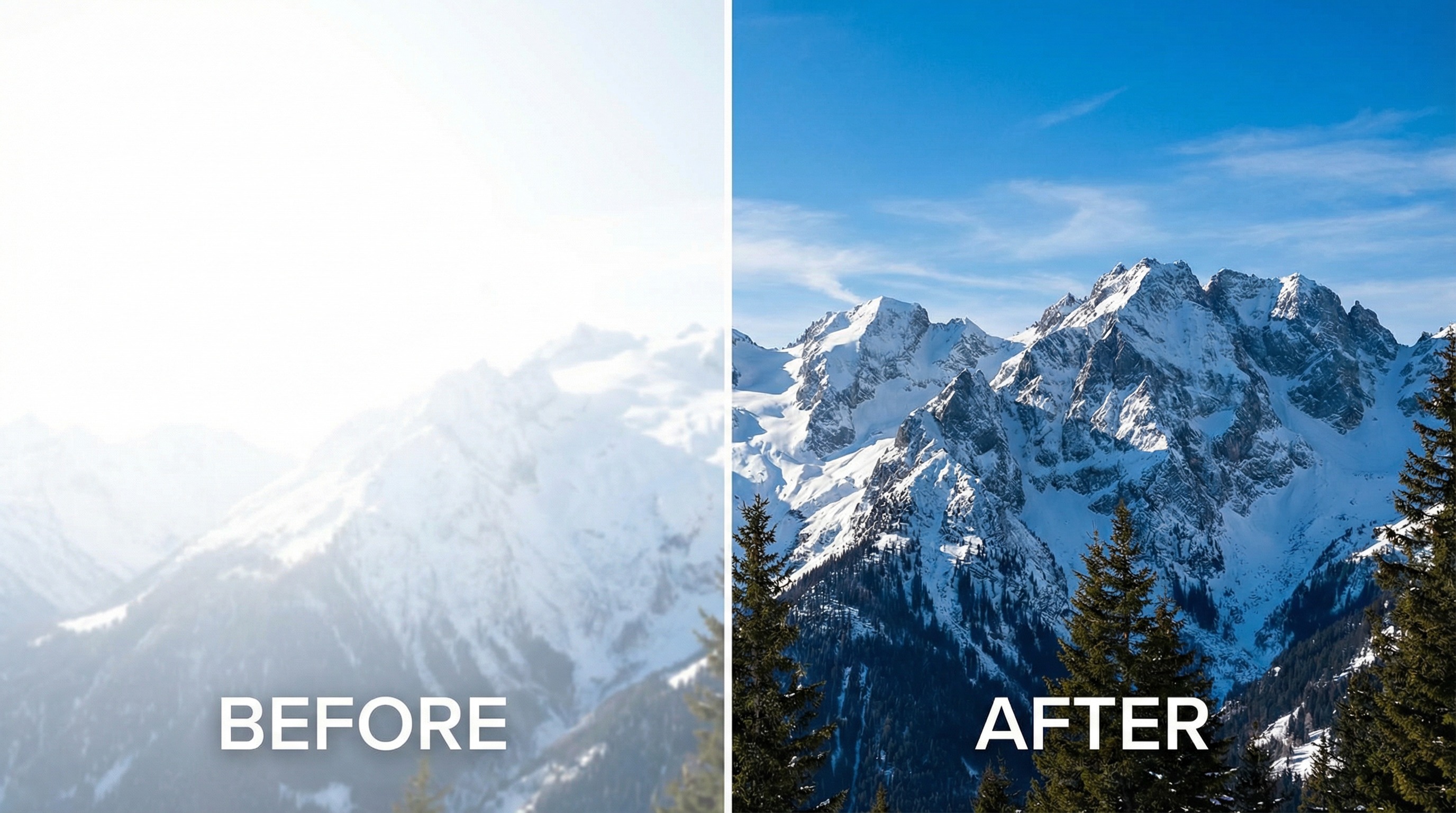
The Problem: Snow has high reflectivity (albedo). On sunny days, the glare hits the sensor hard, turning majestic mountain peaks into a flat, blinding white sheet with no definition.
The AI Fix: By processing the "High Key" areas, the AI restores the contrast between the snowdrifts and the rock, making the powder look textured rather than flat.
3. Concert & Stage Spotlights
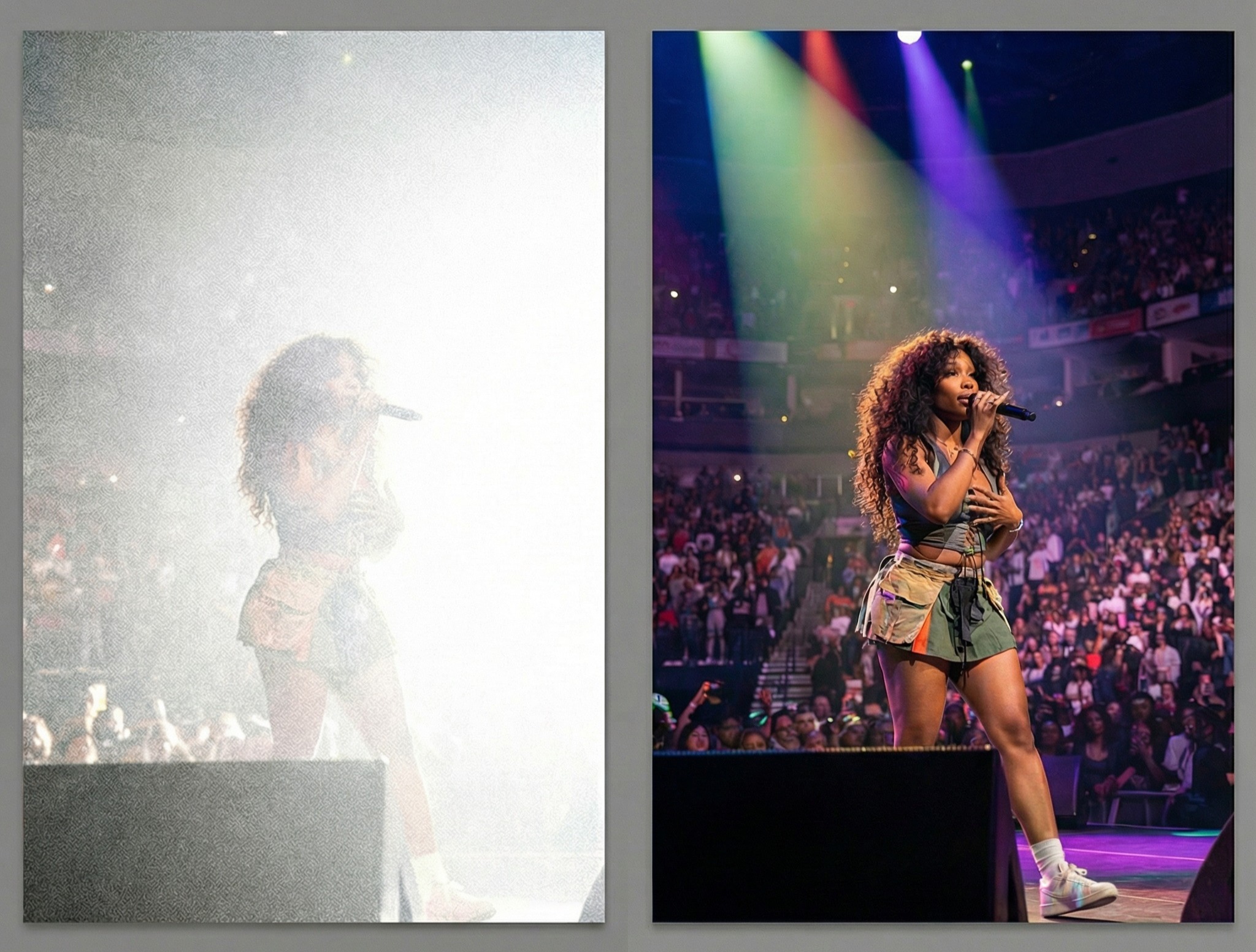
The Problem: You’re at a concert, and the spotlight hits the singer's face. In your photo, the background is perfect, but the artist's face is a washed-out white ghost.
The AI Fix: The AI identifies the face (facial detection) and intelligently lowers the exposure only on the skin, bringing back the artist's features without making the rest of the stage too dark.
4. Real Estate Window Glare
The Problem: When taking a photo of a room, the windows often look like exploding boxes of white light because it is brighter outside than inside.
The AI Fix: Instead of using complex HDR bracketing, run the image through the Online Editor. It pulls back the exposure on the windows, often revealing the view outside (trees, buildings) that was previously blown out.
5. Removing Flash Glare on Documents
The Problem: You need to scan an ID card or glossy photo, but your phone's flash created a giant white "hot spot" that makes the text unreadable.
The AI Fix: The tool treats the flash reflection as an overexposed highlight. It tones down the glare, making the text underneath readable again—a lifesaver for administrative tasks.
FAQ: Common Lighting Correction Questions
- Can I fix a photo that is completely white?
- If a photo is 100% white (pure #FFFFFF pixels), no data exists to recover. However, if there is even faint detail, YouCam's AI can enhance that texture and reconstruct the image.
- Does this work for underexposed (dark) photos too?
- Yes. The same "AI Lighting" tool works in reverse. It brightens shadows without creating "noise" (that grainy look), making it perfect for night shots or indoor parties.
- Is the quality reduced when I download?
- No. YouCam Online Editor processes high-resolution images and allows you to export them without heavy compression, ensuring they remain sharp for Instagram or printing.


