




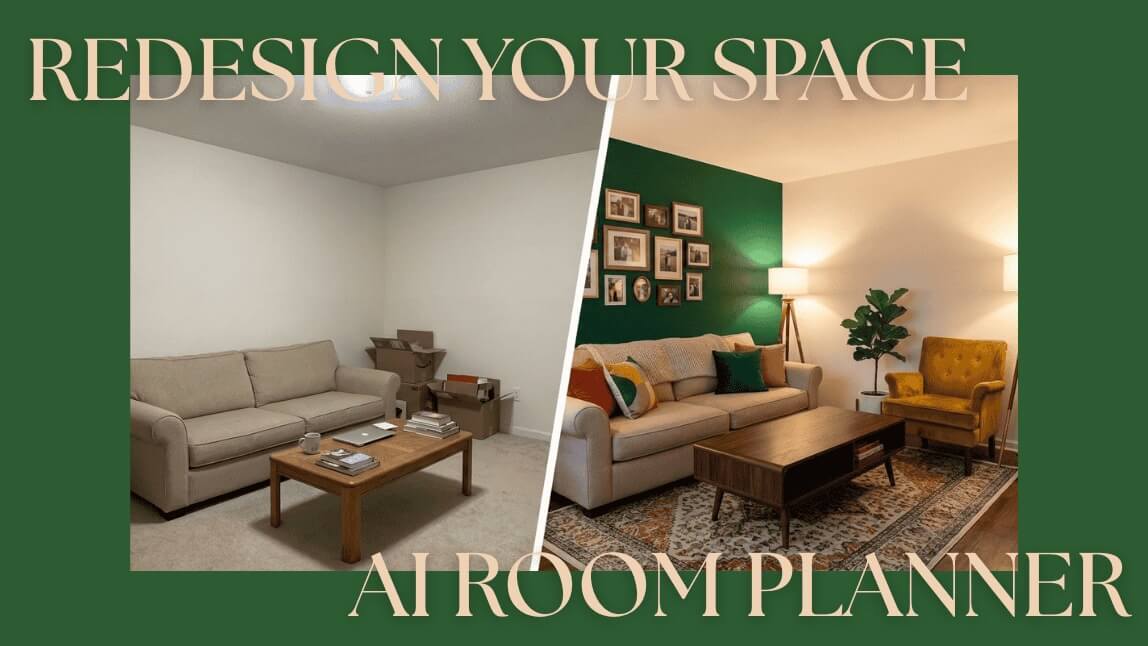
We’ve all been there. You’re standing in the middle of your living room, staring at a tired old sofa, wishing you could snap your fingers and turn the space into something out of a magazine.
But then reality hits. Will that dark blue paint look moody or just gloomy? Will a modern rug clash with your vintage table? Usually, finding out costs money and heavy lifting.
But what if you could see the future of your living room before you spend a dime?
With the YouCam Online Editor, you can. Using our smart AI room planner, you can upload a photo of your current space and watch it transform before your eyes. Whether you want to try out a "Boho Chic" vibe or a sleek "Modern Minimalist" look, AI is your new favorite DIY partner.
Here is how to design & render room makeovers instantly—no interior design degree required.
What Actually is an AI Interior Planner?
Think of an AI interior planner as a magic filter for your house.
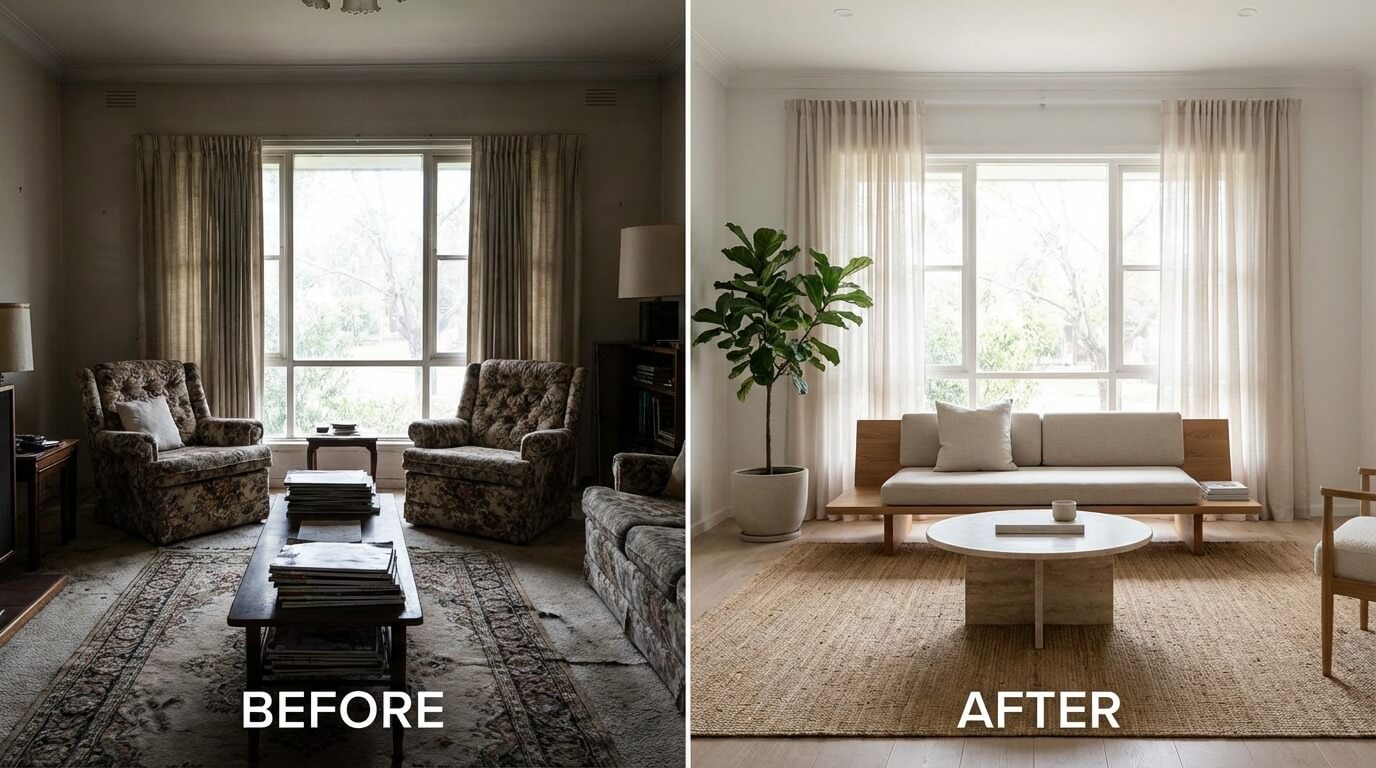
Unlike complicated architect software where you have to draw floor plans, YouCam’s AI works with Image-to-Image technology. This means it looks at the photo you upload, understands the structure (where the floor, ceiling, and windows are), and then "repaints" the room based on your style ideas.
It keeps the bones of your room the same but swaps out the "vibe." It’s the fastest, risk-free way to visualize a renovation.
How to Give Your Room a Virtual Makeover (In 3 Steps)
Ready to play designer? Here is how to use the YouCam Online Editor to create your dream home.
Step 1: Select "Image 2 Image" & Upload
Navigate to the AI Art Generator. Before uploading, make sure to select the Image 2 Image mode. This tells the AI to use your specific room structure as a blueprint. Once selected, simply upload the photo of your space.
- Tip: Don't worry if the room is a little messy; the AI can often fix that for you!
Step 2: Describe Your Dream Style
In the text prompt box, tell the AI what you want to see. This is where you get to be the AI Interior Planner. Be creative!
- Try typing this: "Cozy Scandinavian living room, sunlight, light wood furniture, fluffy rug, pastel colors, 4k realistic."
Step 3: Adjust the "Magic Slider" (Image Strength)
This is the most important setting. In the editor, you will see a slider for "Image Strength" or "Influence."
- Keep it Familiar (Low Strength): If you just want to change the colors or lighting but keep your current furniture, keep the slider lower.
- Total Overhaul (High Strength): Want to see what your room looks like with brand new furniture and decor? Push the slider higher (around 60-70%). The AI will keep your walls in place but replace everything else!
3 Secrets for "Pinterest-Worthy" Results
Want your design & render room results to look like they came from a pro? Use these easy tricks:
1. Talk About Lighting
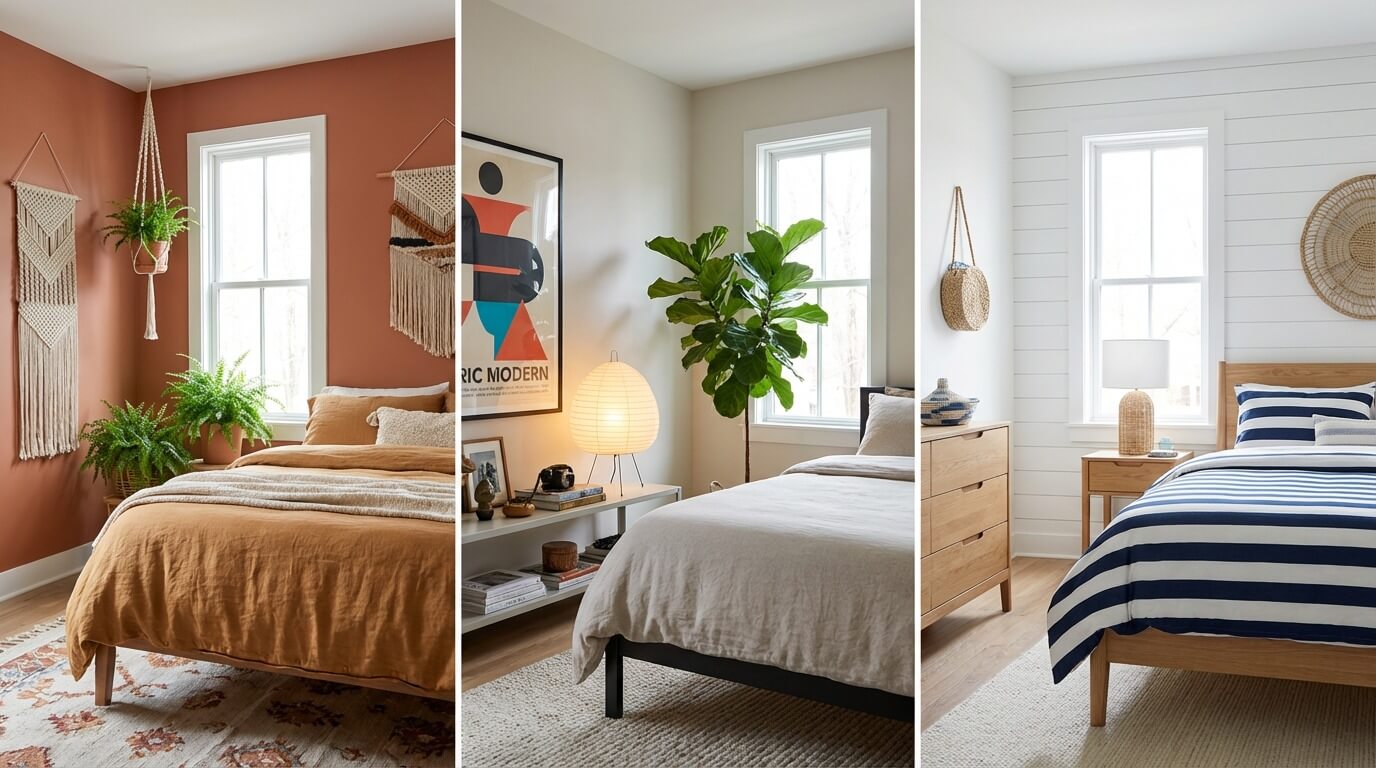
Lighting changes everything. If your original photo is dark, tell the AI to add light! Add words like "Golden hour sun," "Bright morning light," or "Cozy warm lamp lighting" to your prompt. It makes the render look incredibly real.
2. Be Specific with Materials
Instead of just asking for a "table," ask for a "marble coffee table" or a "rustic oak dining table." The AI knows exactly what these textures look like and will add that detail to your image.
3. Use the "Negative Prompt"
Is the AI adding things you hate? Most tools have a "Negative Prompt" box. This is your "No" list. You can type things like "clutter," "trash," or "people" to ensure your room looks clean and tidy.
Why You’ll Love Using AI for Decor
- Save Money: Stop buying pillows and rugs that don't match. Test them virtually first.
- Settle Arguments: Can't agree with your partner on a paint color? Generate both options and see which one wins!
- Just for Fun: Even if you aren't renovating, it is incredibly satisfying to turn your boring laundry room into a tropical spa just to see what happens.
Start Your Makeover Today
You don't need a heavy budget to start dreaming. The YouCam Online Editor is ready to turn your "before" photos into "after" masterpieces.
FAQ: Your AI Decor Questions Answered
Q: Do I need professional design skills?
A: Not at all! If you can send a text message, you can use an AI room planner. The AI does the heavy lifting for you.
Q: Will the AI change the shape of my room?
A: Generally, no. The Image-to-Image technology uses your photo as a map. It keeps your walls, floor, and ceiling in the same place but changes the textures and objects inside the room.
Q: Can I use this for my garden or patio?
A: Yes! It works for exteriors too. Just upload a photo of your backyard and use prompts like "modern patio with fire pit" or "English cottage garden."


