




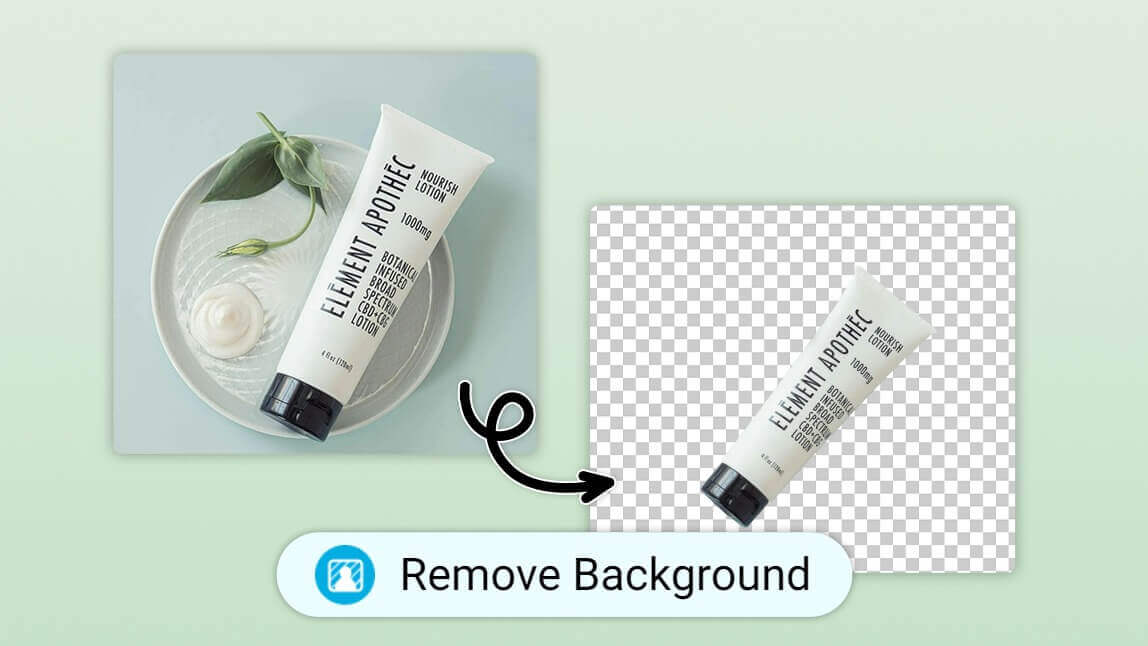
If you’re asking, “How do I make an image transparent?” you don’t need to be a designer to get a professional result. Forget the struggle of manually erasing edges or using complex software. With a free online background remover like YouCam Online Editor, you can turn any photo into a clean, transparent PNG in seconds. It’s fast, free, and works directly in your browser.
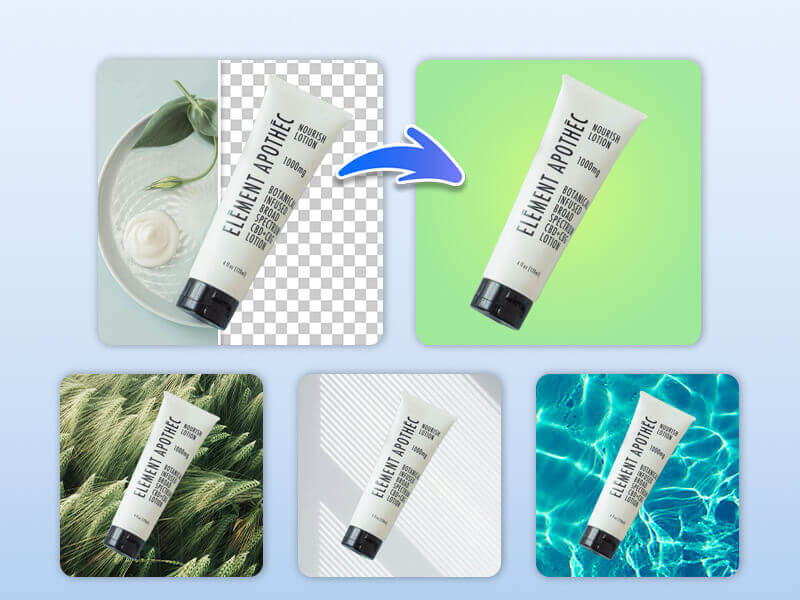
How to Make Your Image Transparent in 3 Steps
You don't need to learn how to "mask" or "cut out" subjects. Our AI handles the hard part for you, identifying people, products, or logos with surgical precision.
1. Upload Your Image
Go to the YouCam Online Editor and upload your photo. You can use JPG, PNG, or even TIFF files. No app download is necessary!
2. Automatic AI Detection
As soon as you upload, the AI "scans" your photo. It instantly separates your subject from the messy background. When you see that checkered pattern appear behind your subject, you’ll know the background is now transparent.
3. Save as a PNG
This is the key to success: To keep that background clear, you must download the file as a PNG. This format is built to support transparency, ensuring you can place your image anywhere without a white box.
Common Mistakes: Why Transparency Sometimes Fails
Even with the best tools, beginners often run into a few common hurdles. Here is how to avoid them:
- Low Edge Resolution: Many basic tools leave "jagged" or blurry edges around hair or fuzzy textures. Our AI uses refined edge-detection to keep things smooth.
- The "Checkered" Image: Be careful of some websites that save the checkered pattern as part of the image! A true transparent image will appear clear when you place it on a new background.
- Wrong File Format: Saving as a JPG will flatten your image and destroy the transparency. Always stick to PNG.
AI vs. Manual Editing: Why AI Wins
In the past, you had to carefully "trace" your subject with a mouse. Here is why the modern AI way is better:
| Method | Time Spent | Skill Level |
|---|---|---|
| Manual Erasing | 15+ Minutes | Professional |
| AI Removal | 5 Seconds | Total Beginner |
What Can You Do With a Transparent Image?
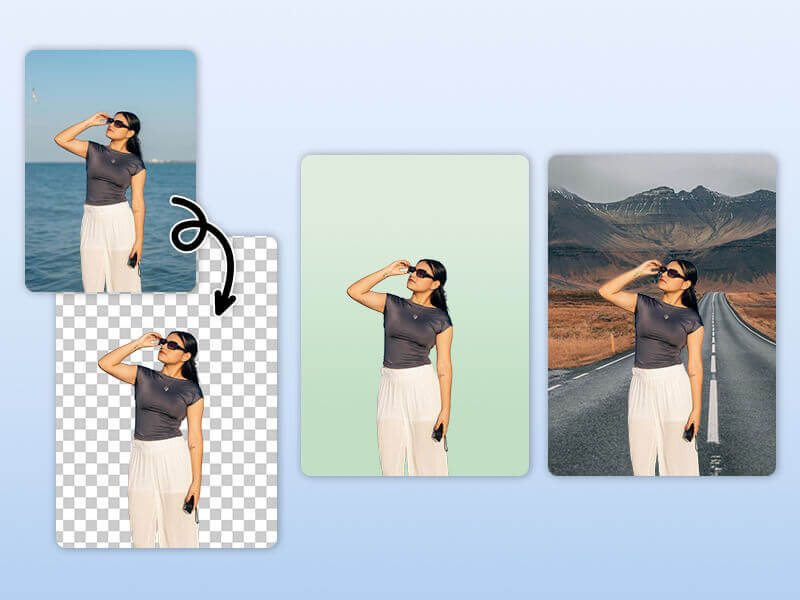
Once you have a clean cutout, the creative possibilities are endless:
- For Business: Create polished product listings for Amazon, Shopify, or Instagram.
- For Social Media: Design custom stickers, YouTube thumbnails, or viral collages.
- For Personal Projects: Create personalized holiday cards, invitations, or new profile pictures.
FAQ: Making Images Transparent
- How do I make an image transparent for free online?
- The fastest way is using an AI-powered tool like YouCam Online Editor. Simply upload your photo, and the AI will automatically remove the background in seconds. It is free to use and requires no software installation.
- Why is my background still white after I remove it?
- This is almost always because the image was saved as a JPG. JPG files do not support transparency. To keep the background clear, you must download and save your image as a PNG file.
- Can I make a logo background transparent?
- Absolutely. AI background removers are perfect for logos. The tool detects the edges of icons and text, removing the solid background so you can place your logo over any website design, video, or business card.
- How do I make a white background transparent?
- By uploading your photo to an AI remover, the software distinguishes between the white background and your subject. It then 'erases' the white pixels, replacing them with a transparent alpha channel that works in any design software.
- Does making an image transparent lower the resolution?
- No. High-quality AI tools like YouCam preserve the original resolution of your subject. In fact, many users use the tool to create higher-quality product photos for sites like Amazon or Shopify.
- Can I do this on my iPhone or Android?
- Yes! You can use the YouCam Online tool in your mobile browser, or download the YouCam Enhance app for a dedicated mobile experience with even more features like photo upscaling and blur removal.


