


 Filigransız indirYapay Zeka Fotoğraf Düzenleme araçlarına erişimKullanılmayan krediler bir sonraki aya devredilir





AI Video Object Remover
Remove unwanted objects, people, and watermarks from your videos automatically. Get distraction-free footage instantly with our AI Video Eraser—no professional software required.




The Ultimate AI Video Cleanup Tool
- Smart Object Removal: Paint over unwanted elements like trash cans, power lines, or random passersby to erase them from video.
- Watermark & Logo Remover: Automatically detect and remove watermarks, date stamps, and brand logos using the dedicated watermark tool.
- Text & Subtitle Eraser: Clean up clips for social media by removing hardcoded subtitles or text overlays without blurring the background.
- Precision Brush & Eraser: Use the flexible brush size slider to select complex shapes, and the eraser tool to refine your selection for pixel-perfect results.
- AI Motion Tracking: Our AI understands movement, ensuring the object stays erased even if the camera or the subject moves during the clip.

Erase Objects from Video in 3 Steps
From distinct watermarks to moving people, clean up your footage in just a few clicks.

Upload Your Video
Drag and drop your video file (max. 60 seconds) into the editor. Choose between the "Remove Object" or "Remove Watermark" tab based on your needs.
Supported formats: MP4, MOV, and M4V.


Paint the Area
Adjust your Brush Size and paint over the unwanted object. Made a mistake? Use the Eraser tool to refine your selection mask perfectly.

Clean Up & Download
Hit Start and watch the AI track and remove the object across all frames. Preview the clean video and download your HD result.
What Can You Remove with AI Video Object Remover?
Erase Strangers from Travel Footage
Ruined a perfect shot because someone walked into the frame? Use the Video Object Remover to erase photobombers or tourists from your travel vlogs, keeping the focus entirely on you.

Delete Watermarks & Brand Logos
Repurposing content? Easily remove watermarks from TikToks or stock footage. Our specific "Remove Watermark" tool allows for box-selection to clear logos from the corner of your videos instantly

Remove Clutter & Unwanted Objects
A stray cup, a messy wire, or a trash can can ruin the aesthetic of a video. Paint over these distractions to clean up your background and elevate the production value of your clips.

Clear Hardcoded Text & Subtitles
Need the raw footage back? Remove text from video frames without blurring the action behind it. Perfect for editors who need to add new localized captions to existing videos.

FAQs: Video Object Remover
How do I remove an object from a video online?
Upload your video to YouCam Online Editor. Select the "Remove Object" tab, use the brush tool to paint over the item you want to delete, and click Generate. The AI will automatically fill in the background.
Can I remove watermarks from videos?
Yes. We have a dedicated Remove Watermark tab. You can use a selection box to highlight logos, timestamps, or watermarks, and the AI will erase them frame-by-frame.
Does the eraser work on moving objects?
Yes. YouCam uses AI motion tracking. Once you select the object in one frame, the AI analyzes the video flow to ensure the object is removed throughout the clip, even if it moves.
Can I adjust the selection area if I make a mistake?
Absolutely. The tool provides a Select (Brush) button to add to the mask and an Eraser button to remove parts of the mask. You can also adjust the Brush Size slider for precision editing.
Will removing objects lower my video quality?
Our goal is to maintain the highest quality. The AI fills in the removed area intelligently to match the surrounding pixels, keeping the rest of your video sharp and in high resolution.
What video formats are supported?
You can upload and edit common video formats including MP4, MOV, and M4V.
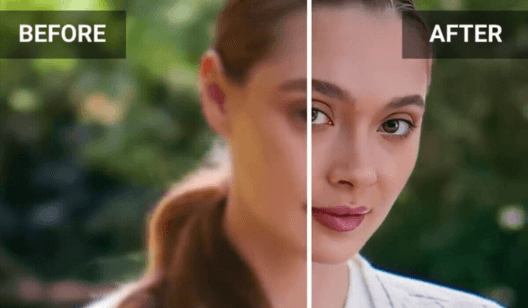
Ramp up your Video Quality with You Cam's AI Video Enhancer. Our powerful AI achieves a professional look and clear visuals within minutes!

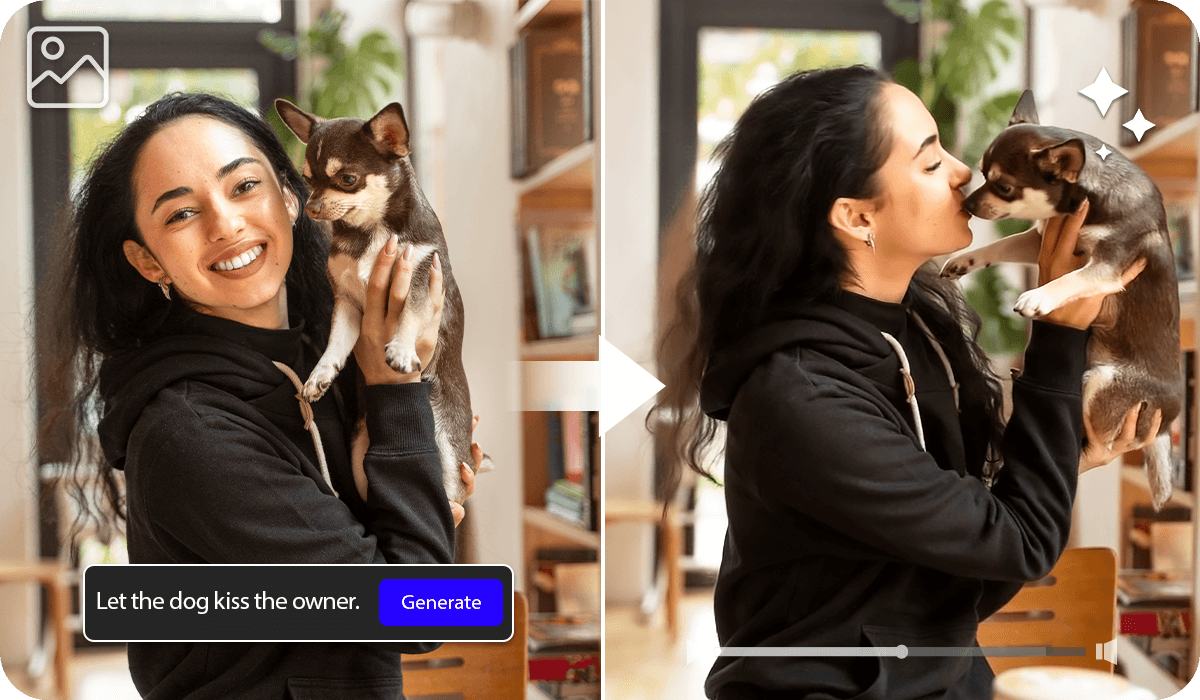
Bring any photo to life with our advanced Image-to-Video Generator. Explore our wide library of templates or set your own tone, it's all your choice!

Give your videos the last artistic touch with the perfect Video Filter. Explore YouCam's wide range of styles and moods to find the perfect setting of your story.


